Purpose
Set the value for the token [mwfDate] for the incoming files (its Universal Path) with the date (and time, if desired) of when this node is being processed.
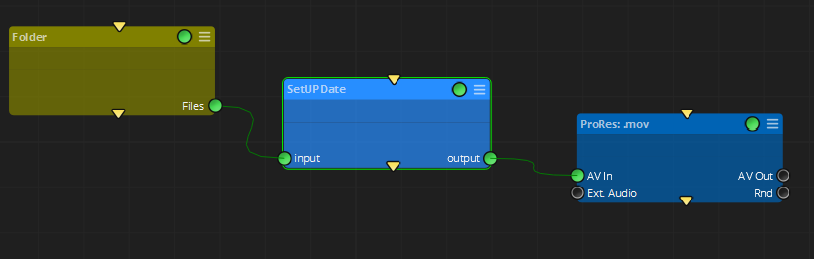
NOTE: in the paradigm of workflows that take some time to be processed, it is important to take into account that using a dynamic data such as date and time can lead into unexpected behaviours, such as renders that start before 23:59 and continue after midnight. It is recommended to use this node before any rendering or time consuming process, so all outputs will have the same date, and its differences in time will be a matter of seconds.
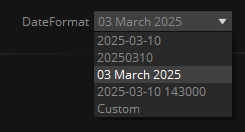
The format of the date to be used can be selected from its pulldown menu DateFormat:
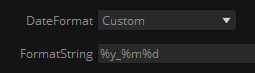
If set to 'Custom', then a FormatString field will be available, where the user can introduce its own date/time format string to be used:
When being evaluated, the node will check that no illegal characters are introduced (such as '\ / : * ? " < > |'), in order to prevent further errors in the workflow when trying to create folders or naming files with the value of the [mwfDate] token.

This node also gives a value for the tokens [mwfVersion] and [mwfName], which will be resolved with the current version of Mistika Workflows, and the name of the current workflow, respectively.
Inputs
in: media file to set the Date metadata into the token [mwfDate]
Outputs
out: The in file, now having the Date metadata in its token [mwfDate]
Standard properties
Object Name
Color
Bypass
Lock
Python standard properties
code
NOTE: This is a Python node, with source code provided in this property. An introduction to all the Python tools in Mistika Workflows is available in the Python scripting tools section.
Node specific properties
DateFormat: Pulldown menu to select the string format for the Date metadata, which can be used with the [mwfDate] token later in the workflow.
FormatString: If DateFormat is set to 'Custom', a customized format string can be used here. It must be written between "" to be evaluated.
Please refer to https://strftime.org/ for common strings that can be used.
Developer reference (Python - SetUPDate.[Property ID], API Rest - node/SetUPDate/property/[Property ID])
Property Label |
Property ID |
Date Format |
DateFormat |
Format String |
FormatString |