Mistika Workflows provides a Name Convention mechanism to ensure file naming coherence and automatic file naming.
This system also permits to extract metadata tokens from input files (for example from embedded metadata from camera formats, or from the paths and file name syntax, or even using specialized nodes that can read metadata from spreadsheet files and inject it into new tokens... ) and it will define the naming rules when creating new files.
It can also be used to ensure that no input file is imported into the workflow if it does not respect the pre-selected naming rules, as otherwise human mistakes could easily propagate to delivery files.
The Name Convention works as follows:
By default all nodes will use the default Name Convention of their workflow (which is visible at the bottom right corner of the Nodegraph and can be changed with its contextual menu). That means that, by default, all nodes expect to receive media files with the Name Convention naming syntax, and they will also produce new media files with the Name Convention syntax..
The name convention by default is pretty generic:
[path][baseName][.ext]
Depending on the node type:
- Nodes without a Name Convention property will inherit it from the previous node. Or if there is no previous node passing it then they will fallback to the default Name Convention of the workflow.
- Nodes having a Name Convention property will do the same, but their Name Convention property can be changed (either manually or by the node functionality itself). Changing the Name Convention property will affect the file naming of the new media created by the node (if any), and it will be passed to posterior nodes, thus becoming the new Name Convention to be used downstream.
- Specialized input nodes from camera manufacturers (ARRI, Canon, Panasonic, RED, Sony ...) obtain the naming syntax (and multiple file structures used by some of them) automatically, based on the camera manufacturer specifications.
- Input nodes created by a drag & drop action (dropping files from a file browser into the Nodegraph) will try to auto-detect the media format, and if they succeeded they will create the corresponding specialized node for them.
For the case of enumerated sequences it may be necessary to select the proper Name Convention describing the file numbering syntax before loading them (the frame number syntax and separator character). Some examples will be provided below...
By default the name convention is the same for all workflows. But you can establish a different name convention at per workflow level or even at per node level as said (for the case of nodes having a Name Convention property).
Please note that in many cases the input files do not even exist at node creation time, so you should not expect new nodes to be created with a matching name convention automatically. Basic workflows will work with no action needed on your side, but in general you should check that you have selected a valid name convention for your workflows in advance.
There are specialized nodes that can make changes to the Name Convention, such as the Change Name Convention (typically used in combination with the NC to metadata ) . for example to obtain new tokens from incoming files and the reusing those tokens for new file names.
You can change the name convention used for new files, but please note that Workflows nodes can not rename pre-existing files (that could break the coherence of ongoing operations in other workflow branches and nodes). However theMove and Copy nodes can be used to rename the files while they are moved or copied to other place, so you do not need to use encoder nodes if you just want to change the names.
File numbering and tag parameters
Mistika Workflows is aware about what are enumerated sequences, and when they are imported by specialized nodes you should not need to define the frame syntax (the frame number is taken as the last number from the right).
But in for non standard cases enumerated sequences may need to use a frame tag in their name convention, and also when creating new sequences that are not coming from other enumerated sequences (i.e. when converting movie files to enumerated sequences...). In these cases, the separator prefix also needs to be included in the metadata tag (use descriptors like [frame], [_frame], [.frame], [-frame]...), so that the whole token can be added or removed across the workflow depending on your trans-coding needs.
You can also add the padding (lead zeroes) as a tag parameter, with the syntax [tag{parameter_name=value}]. If a metadata tag has available parameters they will be shown when clicking on it. In this example:

Example results for a dpx file with baseName "MyFile", when writing frame 234:
[basename][_frame{padding=5}] -> MyFile_00234.dpx
[basename][frame{padding=7}] -> MyFile0000234.dpx
[basename][.frame{padding=0}] -> MyFile.234.dpx
Maintain Padding
A property Name Convention -> Maintain Padding has been added to some input nodes for situations when the lead zeros may not be known in advance, such as Watcher and Folder nodes, which basically means to "Maintain the Input Padding (on/off)". In any case, if the specifications of your workflow are known in advance it is always recommended to enforce strict name conventions and strict frame numbering rules (padding digits explicitly defined), as otherwise human misspellings on input files could pass undetected to final deliveries.
Example: Removing unwanted characters and changing padding.
By definition, the [baseName] token always starts at the first character of the file name, but sometimes it is not clear where it needs to end, as there can be "decorative" characters that you may want to be removed.
As a first example, let's suppose that you have received an enumerated sequence like this:
/tmp/Test_N0300.exr
/tmp/Test_N0301.exr
/tmp/Test_N0302.exr
...
And let's suppose you want to convert this sequence to dpx while also removing that ugly "N" prefix of the frame numbers and extending the padding (lead zeros) to 6 digits, to obtain files like these:
/tmp/Test_000300.dpx
/tmp/Test_000301.dpx
/tmp/Test_000302.dpx
And let's suppose you had selected this name convention, which is typical for enumerated sequences:
[path][baseName][frame][.ext]
As a first step you will import those files (drag & drop to the Nodegraph), which will create an exr node. And we will connect that node to a DPX node that will render the new files.
For enumerated sequences the frame number is taken (by convention) as "the last number before the extension". and everything before that is the baseName. So the default Name Convention will take "Test_N" as the baseName., which could be valid for the input node (EXR) but it is not what we want to pass to the DPX node.
A simple solution is to set the properties of the EXR node like this:
File/Layers From: /tmp/Test_N.exr (file properties in general do not include frame numbers)
NameConvention: [path][baseName]_N[frame][ext]
Which will get the proper values for the syntax tokens as we wanted:
[baseName] = >Test
[frame] => 0300 .. 0302
Then in the DPX node we will set the Name Convention property as follows:
[path][baseName]_[frame{padding=6}][.ext]
In this example, the "N" character has been simply discarded, because it was explicitly left out of the [baseName] token of the EXR node, and specially because we didn't let the DPX node to inherit the same Name Convention of the EXR node (which was still containing the "_N" substring), redefining its Name Convention explicitly. And finally we recover the "_" separator character and we set the new padding by using the [_frame{padding=6}] token. So we will get what we wanted:
/tmp/Test_000300.dpx
/tmp/Test_000301.dpx
/tmp/Test_000302.dpx
Metadata token injection in output paths and filenames ("File Path" property):
Many nodes can inject additional metadata tokens into the output paths and output file names by using their File Path property (or any other property accepting path syntax, such as Dst. Folder, Directory, Name, etc. ). These can be any metadata tokens extracted from media files (or even user defined by using the Edit Metadata node or other nodes capable for metadata injection).
To insert a metadata token at some point of the File Path property, type the "[" character and start typing the name of the metadata field. A combo list will appear to let you choose any token starting with the same characters that you are typing.
If you have typed a token field between "[" "]" and it is recognized then it will change to green color (always check that it becomes green, otherwise it is telling you that the token does not exist and it will not work). A good example of this process is shown at the end of this video
You can also tell Mistika Workflows to get the values of additional metadata tokens from specific sub-strings appearing in the file paths and file names of the input files. This is normally achieved by using the NC to metadata node (Name Convention to metadata). However, before you can do that all the metadata tokens that you want to use need to appear in this configuration file (before opening Mistika Workflows):
SGO AppData/shared/config/NameConventionPlaceHolders.xml
That file comes with the most common metadata tokens used in the media industry, as found embedded in standard media files and typical media production workflows, but you can add more tokens as said (just imitate the existing syntax that you will find within the xml file).
"Dst. File Path" and "Name Convention" differences:
For the case of nodes creating new files, note that their Name Convention property and the File Path properties serve different purposes and their syntax does not need to be identical at all. In most cases you will not need to touch them, but sometimes you may want to make changes or to specify different metadata granularity.
In general, the Dst. File Path property can be used to inject metadata tokens into the file names of new media created by the node. While the Name Convention property will describe the naming syntax to be passed to posterior nodes. Now consider this example:
Let's suppose a previous node imported a file named "MyFile.mxf", and it found some tokens embedded in the metadata of the media file (for example location: "London", scene: "Scene006" and take: "Take004").
And now we connect it to a ProRes encoder node and we set these properties in the ProRes node:
File Path: [path][location][_scene][_take][.ext]
Name Convention: [path][baseName][.ext]
Then, the ProRes node will transcode "MyFile.mxf" to a ProRes file renamed with those metadata tokens, so it will be named as follows:
London_Scene006_Take004.mov
Meanwhile, the Name Convention property can (and should) be left as [path][baseName][.ext], so it will pass this baseName token to the next node:
New baseName = London_Scene006_Take004
And thanks to this capability you do not need to repeat the token injection process in posterior nodes, which could complicate things unnecessarily. (Alternatively we could use the Dst.File Path syntax from the above example ( [path][location][_scene][_take][.ext] ) also in the Name Convention property and it will also work, but if we do so then the next node will need to be aware about what are those new tokens and use them on its path related properties , which depending on the case can be an annoying requirement easily avoidable as explained.
Inserting parent folder names from the original path into the destination path:
There is an interesting token that permits to get a certain number of parent folders from the original path and reuse them when creating the destination path:
[fullParentFolder{levels=value}]
(Note that you don't need to remember the syntax, as we will see in the next point about the Name convention manager)
Example: Let's suppose we feed this .mxf file to a ProRes node:
/Volumes/disk1/Location4/Scene007/MyMediaFile.mxf
And we set the File Path property of the ProRes node to:
/Volumes/disk4/[fullParentFolder{levels=2}][baseName][.ext]
Then the ProRes node will create this file:
/Volumes/disk4/Location4/Scene007/MyMediaFile.mov
Creating new metadata tokens:
All tokens that you plan to use must exist in this file before opening Mistika workflows:
SGO AppData/shared/config/NameConventionPlaceHolders.xml
You can add tokens iin any category you prefer, but first you should search for your token, as most of the metadata used in media production is already there.
To create a token named "ClientChange", you could add something like this:
<placeHolder from="metaData" name="ClientChange">
<visibility>true</visibility>
</placeHolder>
From that point you can use it as any other token mentioned in this manual. For example you can give it values with metadata management nodes like NC to metadata , or your own Python nodes (you can use the code of NC to metadata" as a reference about how to do it, as it is also a python node...)
Name convention manager:
In this panel you will find a path syntax editor which will allow you to define Name Convention presets, including the folder paths, file naming and frame numbering syntax.
It is accessible trough these methods:
Main menu -> File->Preferences->Name Convention
Nodegraph ->Name Convention indicator (contextual menu)->Open Name Conventions manager (or just double click on the name convention indicator)
In the Properties Panel of nodes having a Name Convention property, by using the "..." icon of that property.
This panel provides a lot of extra metadata tags that you can inject to your output filenames, but the most common are the ones from the Classic category
Note that most other metadata tags ([Iso], [Location], etc) will need to be extracted from media files at execution time and are not available to the input nodes, which in general can only use metadata tags from the Classic category in their naming conventions. You can later inject the rest of metadata tags to the output files as needed.
This tool is also useful to avoid having to remember the specific syntax of each token. The supported tokens are organized in categories, and a double click in one of them will insert the necessary syntax in the Name Convention entry. (alternatively, if you are editing a file path property of a node you can start typing the character "[" followed by the starting of a token name, and a combo box will open to select between matching tokens).
Note that many tokens accept additional parameters (such as the levels parameter of the fullParentFolder token mentioned above). The parameters are shown in the right column, and their values are editable in value column.

In the Presets Name Convention selector you will find the name conventions list, which permits to select which one to use for the current workflow (or to delete them when not used anymore). You can also create new presets in the Name Convention field and then click Add Preset to save them to the list, which will also make them available to all your future workflows.
The syntax is case sensitive, and it will refuse syntax errors by removing the brackets automatically. For example the [baseName] tag requires the uppercase "N" in the middle. If you just type a mistake like:
[path][basename][ext] (wrong!)
then you will notice that the brackets disappear, so you will see something like:
[path]basename[ext]
Rather than the correct expression:
[path][baseName][ext]
For example, if you don't fix it and you have and input file named MyFile_0223.dpx connected to an exr node you would expect an output file named as MyFile_0223.exr but the above example will produce something like basename_2449.dpx. So you can easily find where the problem comes from.
When using task nodes for transcoding, the [.ext] extension field will automatically generate the file extension corresponding to the image format created by the node ( .dpx, .exr, etc).
Name convention selector:

Each Workflow can have its own name convention scheme to be used by default, which is visible in this tool. It is available trough the Workflows->Name convention manager->Edit name conventions for all workflows, also available as a contextual menu in the Nodegraph. Here you can apply a naming scheme to the selected workflows (Apply to Selected), or press Apply to All to set a same naming scheme for all the workflows).
Current Name Convention:
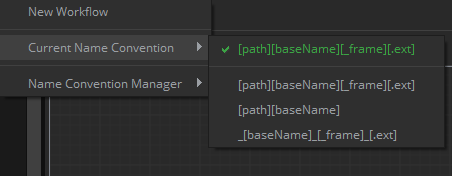
This menu is available trough the main menu trough Workflows->Current name convention and also as a contextual menu in the Nodegraph. And it permits to select the current naming scheme to use by default for the input and output files in the current workflow.
The current name convention is also shown in the bottom right corner of the Nodegraph.
Note that this is just the name convention to be used by default, it will not be used for nodes that define its own Name Convention explicitly.