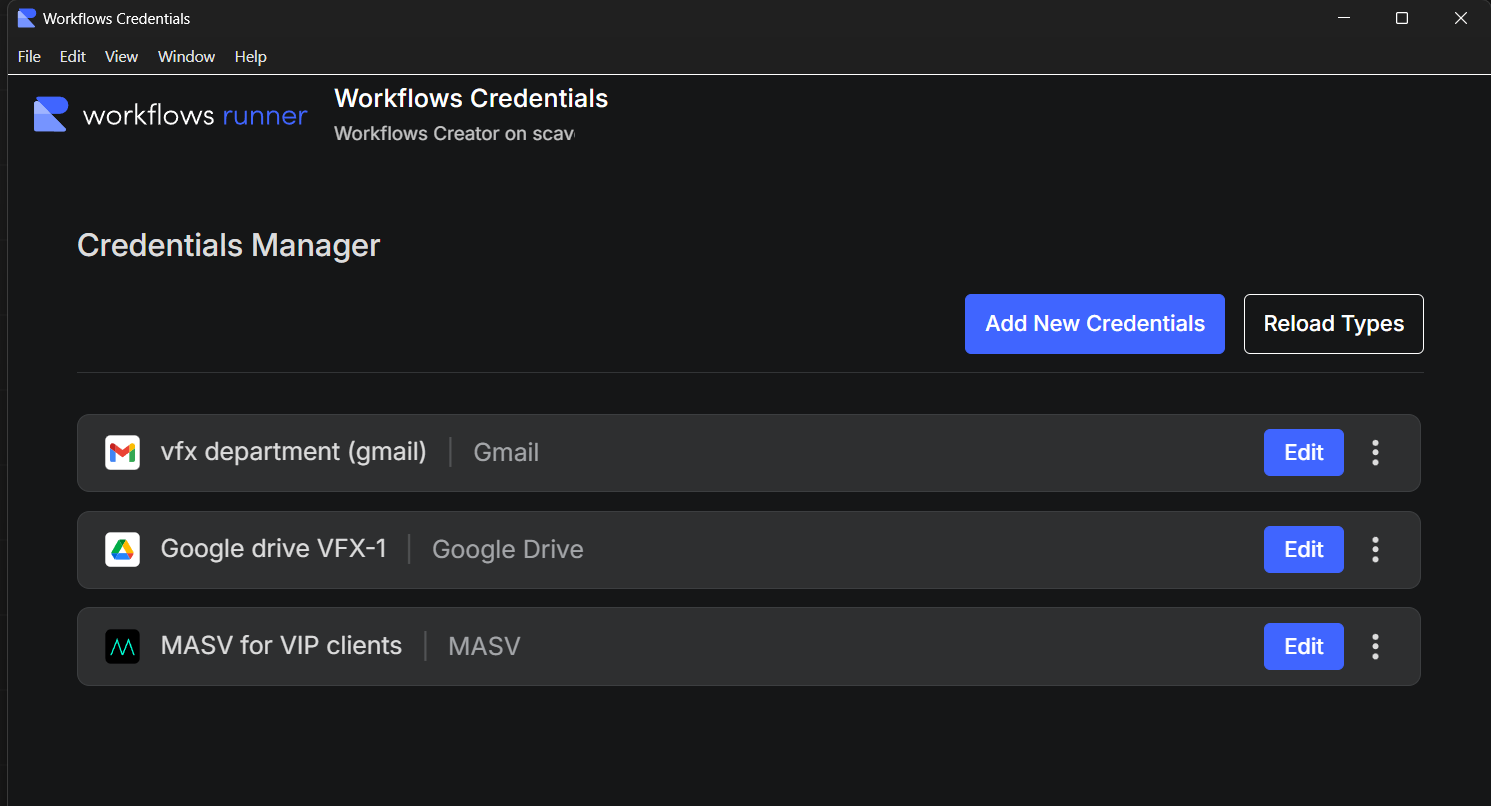
The Workflows Credentials application is designed to store your user credentials to be used by Mistika Workflows applications when they need to access cloud services requiring authentication to perform actions on your behalf.
To open it you can use any of these menus:
Workflows Creator -> Main menu -> Workflows -> Credentials Manager
Workflows Runner -> Settings -> Credentials
The credentials are stored in encrypted form, and once they are saved they can be used to easily configure any workflows requiring cloud service authentication (gmail, masv, amazon s3, signiant, ftp ...), so that you only need to provide the credentials one time.
Note that these credentials will also be available to any AI agents configured to access the workflows mcp (once you give them access to it). In this way your AI agents will be able to create and execute workflows requiring user authentication in any supported cloud services without having to ask you for the corresponding credentials every time.
Add New Credentials: This button permits to select any of the supported platforms and then it will offer fields to input the authentication credentials for it (the type of credentials depends on each cloud service)
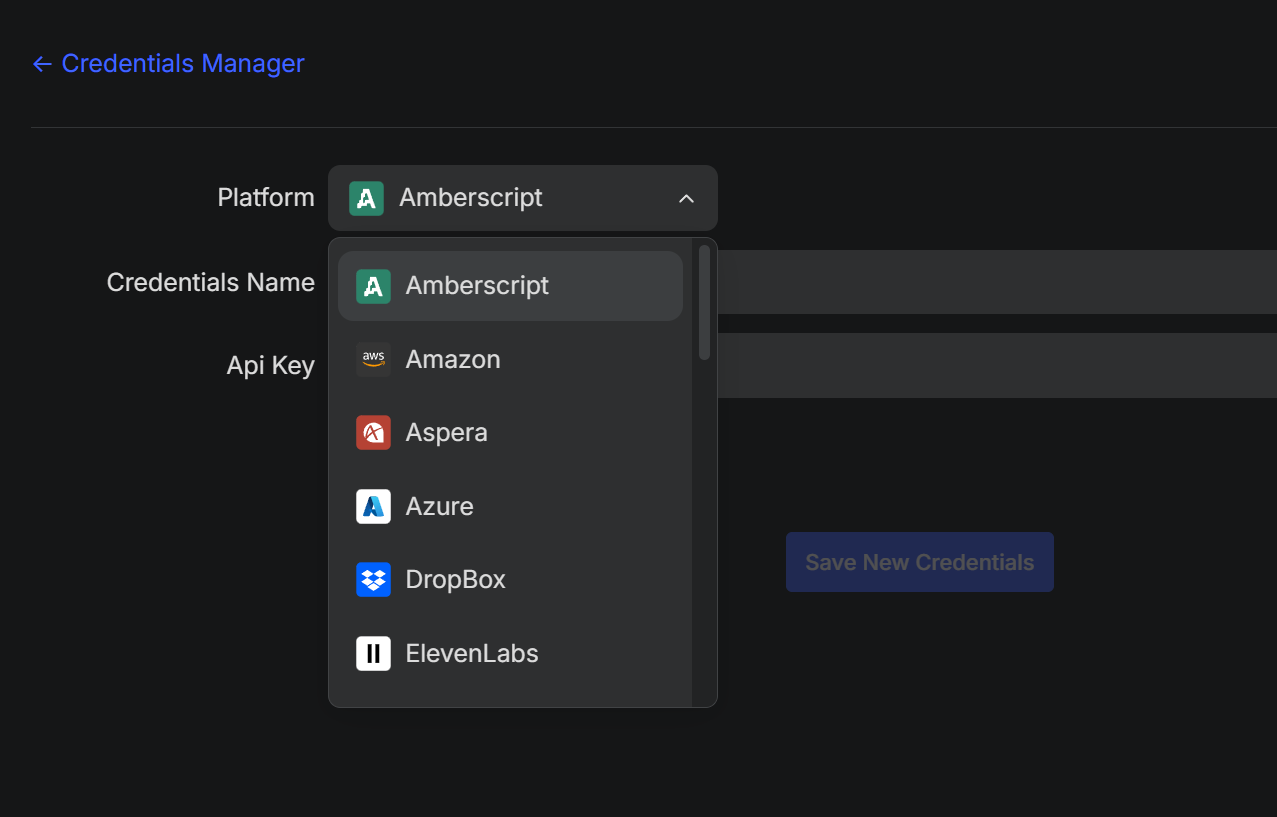
Select the Platform (typically a cloud service), then type a Credentials Name (an user defined alias to easily identify a particular set of credentials) and paste the required credentials for that service (they are platform dependent, check the documentation of each particular cloud service to find how to get application credentials for it). Finally click on Save New Credentials.
Once they are saved, each entry in the credentials list provides a "..." menu with options to Edit (to change the credentials) and Delete (to permanently delete that entry).
To use the credentials within workflows applications:
Workflows Runner:
Go to any workflow requiring authentication that you want to run and click on the Credentials button that will appear in the right side. Then select the desired Credentials Name.
Workflows Creator:
To configure a new node, right click on the node to open the node contextual menu -> Credentials.
- It will show the available credentials for that particular type of node. Just select the credentials you want. If all goes well the node will be already configured (the config properties of the node will have received the credentials).
- In case of failure, wait a minute for the authentication timeout and check the Validation panel for potential errors.